The question
We run a restaurant with a POS and also receive orders through Glovo or other delivery apps. How do we avoid receiving orders for dishes that have already run out?
It is evening, the kitchen has run out of salmon, but the dish still shows as available in the delivery app. An order comes in that has to be changed or cancelled, the customer is waiting, the courier leaves without a package, and the customer's experience of the restaurant suffers. This often happens when stock is kept in the POS while availability in the apps is changed manually, only when someone remembers.
In a restaurant the problem differs from that of a shop: you are not selling units of a product, but dishes that use shared ingredients, and the limit can sometimes be the kitchen's capacity itself. This guide explains how to think about the link between the POS and the delivery platforms, which safety rules are worth setting, and what to do when automation does not work. What each platform and each POS offers technically should be checked directly with the provider; here we describe working principles, not a specific integration.
If you want us to handle this for you, see our service Stock sync or our service Order centralisation.
Why orders appear for dishes that no longer exist
Overselling, meaning accepting orders you cannot fulfil, rarely has a single cause. Usually several small things add up, unnoticeable in quiet hours but producing impossible orders at peak times. Before choosing a technical solution, it is worth finding out which of them apply to you:
- Availability in the app is changed manually, and at peak times nobody has the time to do it.
- The POS deducts the dishes sold from stock, but not the ingredients they are made from.
- The same ingredients serve the dining room, takeaway orders and several delivery apps in parallel.
- There is an automatic update, but it is delayed or has failed without anyone noticing.
- The app menu was created separately, with names and variants that do not match the products in the POS.
A restaurant's stock should be thought of in terms of ingredients, not just dishes
A shop sells the same product it has on the shelf. A restaurant sells a pizza, but runs out of mozzarella, and mozzarella goes into several dishes. If you track only the dishes, the POS has no way of knowing that several items on the menu have become impossible at the same moment.
That is why the first step is a technical recipe (the dish specification sheet) for every item on the menu, with the ingredients and quantities used. Some restaurant POS systems can deduct ingredients based on the recipe at each sale; check whether yours does and how accurately the recipes are entered. You do not need to track every condiment: focus on the critical ingredients, those that are expensive, perishable or hard to replace during service.
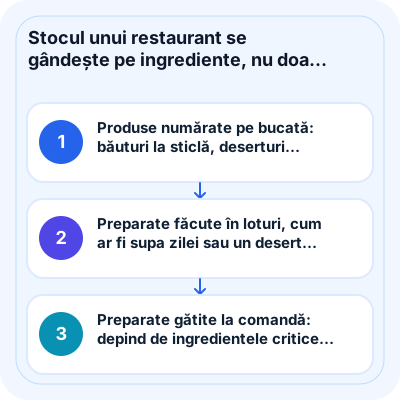
It is worth treating the types of menu items differently, because each one runs out in a different way:
- Items counted by unit: bottled drinks, portioned desserts, packaged products.
- Dishes made in batches, such as the soup of the day or a dessert prepared in the morning: the remaining portions are tracked.
- Dishes cooked to order: they depend on critical ingredients and become unavailable when one of them runs out.
- Options and add-ons (sauce, side, topping): they can run out even if the base dish is still available.
The source of truth and the link between the POS menu and the app menus
For any synchronisation to work, it must be clear which system holds the correct stock. As a rule, this is the POS or the inventory management software linked to it, where goods receipts, consumption and stocktakes are recorded. The delivery apps receive availability from there and should not be changed independently without a rule.
The menu in the apps often differs from the dining-room menu: different names, different photos, combo menus created specially for delivery, options grouped differently. The link between them is made through a shared code, not by name, because names change the first time the menu is reworded.
- Each dish in the app has a unique counterpart in the POS, linked by a code.
- Combo menus are linked to all of their components, so that they become unavailable when any one is missing.
- Options and add-ons have their own counterpart, where the platform allows them to be disabled separately.
- Products that exist only in the app or only in the dining room are explicitly marked.
- Any menu change updates the links first and is only then published.
How availability gets from the POS to the delivery apps
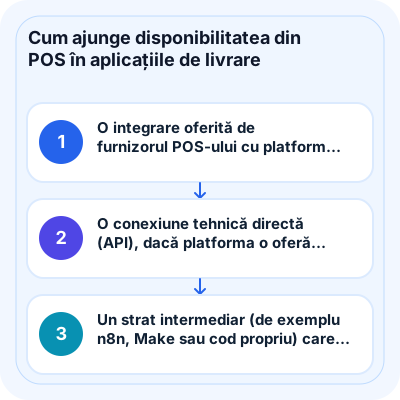
Do not assume that a particular connection exists or that it does what you need. Which options you have depends on what the POS provider offers, what each delivery platform makes available to its partners, and the terms of your contract. Ask both parties in writing what can be updated automatically, under what conditions and with what limits. In principle, the options you may encounter are:
- An integration offered by the POS provider with the delivery platform, if one exists, is maintained and covers availability as well, not just receiving orders.
- A direct technical connection (API), if the platform offers it to partners of your type and approves your access.
- An intermediate layer (for example n8n, Make or custom code) that reads stock from the POS and applies the rules for each channel, within the limits of the access available.
- An organised manual procedure: a designated person on each shift, a clear list of sensitive dishes and checks at fixed times.
The two directions of the link and the inevitable delays
The link works in two directions, and both matter. Availability goes from the POS to the apps, but orders coming from the apps must also reach the POS, otherwise stock is not reduced for delivery sales. If an employee enters delivery orders into the POS by hand, stock falls behind precisely in the busiest periods.
A platform may accept only the available or unavailable status of a dish, not a quantity. In that case, the decision to stop a dish is made in your own system, based on stock and the rules you have set, and the platform receives only the result.
Every automatic update has a delay: between a sale in the dining room and the moment the app stops showing the dish, seconds or minutes may pass, depending on how the systems involved work. Orders can be placed during this interval. The delay cannot be eliminated completely, but it can be offset by the rules in the next section.
Safety rules: thresholds, reserves and kitchen capacity
Because no synchronisation is instantaneous and several channels draw on the same ingredients, do not wait for stock to reach zero. Set a threshold at which the dish becomes unavailable in the apps, even if it can still be served in the dining room. The threshold is chosen together with the head chef, based on how quickly the dish sells at peak hours and how long the update takes.
Overselling is not only about ingredients. When the kitchen is overloaded, the problem is time, not stock. If the platform allows temporary closure, pausing certain categories or extending preparation time, decide in advance who makes the call and in which situations these options are used.
- A deactivation threshold per dish or critical ingredient, adjusted to the sales speed at peak hours.
- A reserve for the dining room, if you want to protect customers who are already in the restaurant.
- A cut-off time before closing for dishes with a long preparation time.
- A failure rule: what happens to low-stock dishes when synchronisation does not respond.
- Controlled reactivation: after a goods receipt, the dish becomes available again only once the stock is confirmed.
When automation fails: alerts and the manual procedure
Any connection will fail at times: the platform temporarily does not respond, an authorisation expires, the POS loses its internet connection, or a new dish has been added to the menu without a link to the POS. What matters is to find out immediately, not from an unhappy customer or a review.
Even with the best rules, an order for a dish that has run out may still reach the kitchen. In that case, follow the platform's procedure for modifying or cancelling orders, as set out in the partner documentation, and contact the customer through the channel permitted by the platform, politely and as quickly as possible.
- An immediate alert to the shift manager when an update fails or when a dish that has been sold has no counterpart.
- A log of what changed, on which channel, when and with what result.
- A written procedure for manual deactivation in each app, listing the people who have access.
- A clear rule for orders that are received anyway: who decides between substitution, modification or cancellation, in line with the platform's rules.
- A review of each case after the shift, so that the same cause does not recur.
The steps of an implementation, from verification to day-to-day operation
The order matters: automation built on top of a wrongly linked menu only passes the error on faster to all the apps.
- You list the channels: dining room, takeaway orders, each delivery app, phone orders.
- You find out from the POS provider and from each platform which connection options they offer, under what conditions and with what limits.
- You decide what is tracked: counted items, batches and critical ingredients.
- You link the POS menu to the menu in each app, using unique codes.
- You set the thresholds, the reserves and the failure rule together with the head chef.
- You test on a few dishes, during a quiet period, including a simulated failure.
- You extend it to the whole menu and monitor the first few weeks with alerts switched on.
- You review the thresholds periodically and whenever the menu changes.